
Stock Control in OrderMate helps venues track inventory, manage stock purchases and monitor stock usage. By linking Menu Items to Stock Items through Ingredients, stock quantities can be automatically deducted when items are sold in WaiterMate.
This guide introduces the stock control process, including the stock cycle and how Menu Items, Ingredients and Stock Items work together.
Understanding the Stock Cycle
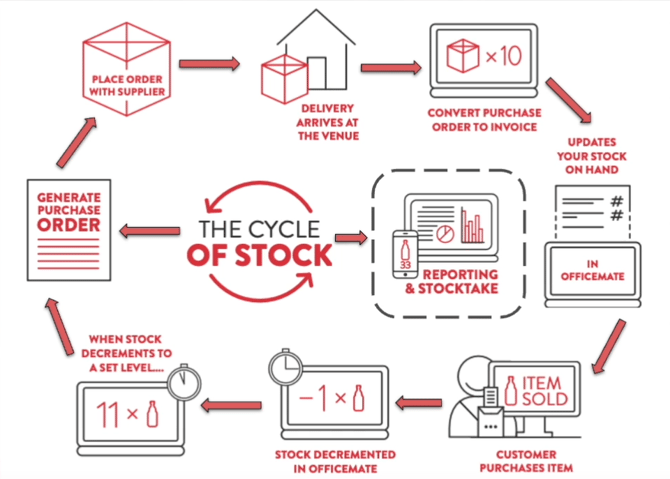
Stock control involves tracking stock from the time it is ordered from a supplier through to when it is sold or used.
The stock cycle includes the following stages:
- Generate an Order: Create an order for stock that needs to be purchased from a supplier.
- Receive Stock: When stock arrives, record the quantities received to update inventory levels.
- Convert Stock: Convert purchased stock into the units used for stock tracking and recipes.
- Record Stock Usage: When menu items are sold in WaiterMate, the quantities of linked ingredients are deducted from stock.
- Perform Stocktakes: Count the stock physically available and compare it with the expected quantities in OrderMate.
- Review Stock Variances: Identify differences between expected and actual stock levels.
- Reorder Stock: Use stock levels and purchasing requirements to determine what needs to be ordered next.
This cycle helps maintain accurate stock quantities and provides information about stock usage and purchasing requirements.
How Stock Control Works
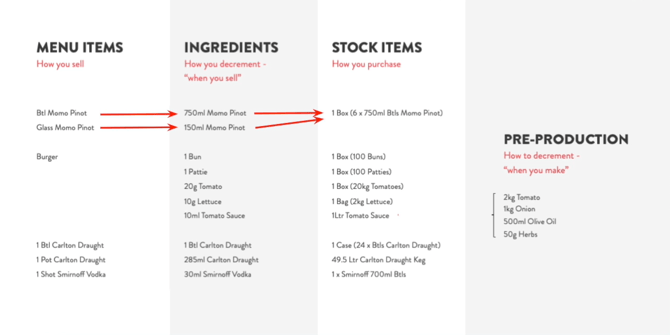
OrderMate uses three main components to track stock usage:
- Menu Items: The products sold to customers through WaiterMate, such as a glass of wine, a burger or a coffee.
- Ingredients: The quantities of stock used to make each menu item. Ingredients link Menu Items to Stock Items.
- Stock Items: The inventory being tracked, such as bottles of wine, coffee beans, milk or burger ingredients.
These components work together so that when a Menu Item is sold, OrderMate knows which Stock Items to deduct and how much to deduct from each one.
Example: Selling a Glass of Wine
A venue purchases wine by the bottle but sells it by the glass.
- Menu Item: Glass of House Red Wine
- Ingredient: 150 mL of House Red Wine
- Stock Item: House Red Wine, purchased and stored in bottles
When a glass of wine is sold in WaiterMate, OrderMate uses the configured ingredient quantity to deduct 150 mL from the relevant Stock Item.
This allows the remaining stock to be tracked even though it is purchased and sold in different quantities.
Using Ingredients to Build Recipes
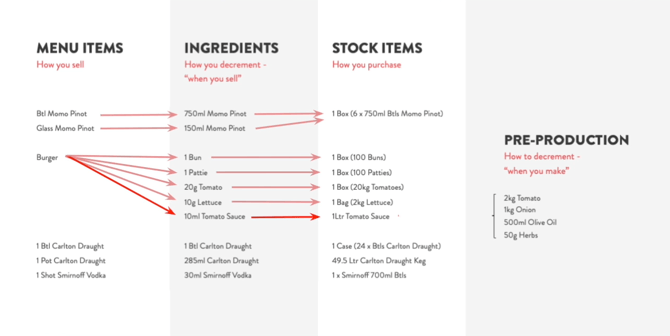
Ingredients are used to define how much stock is consumed when a menu item is sold.
A single menu item can contain multiple ingredients, each linked to a different Stock Item.
For example, a burger could include:
- 1 burger bun
- 1 beef patty
- 1 slice of cheese
- 20 g of lettuce
- 30 mL of sauce
When the burger is sold in WaiterMate, OrderMate deducts the configured quantity of each ingredient from its linked Stock Item.
This means stock usage can be tracked without staff manually adjusting stock levels after each sale.
Pre-Production and Stock Control
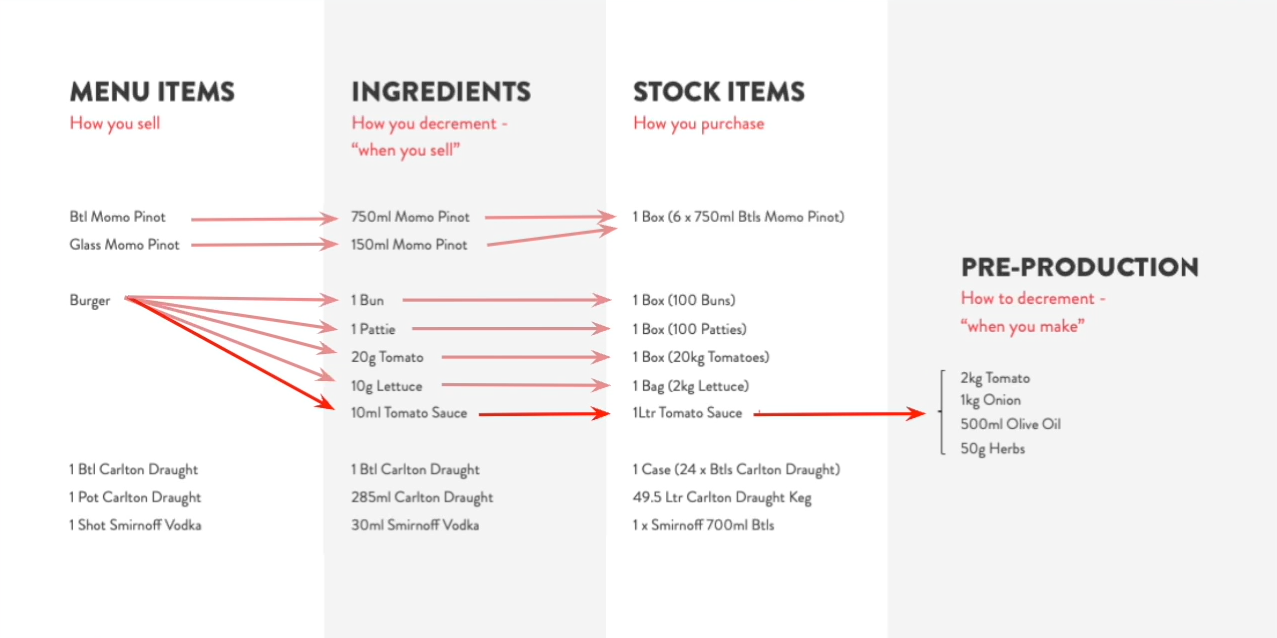
Some venues prepare ingredients or products in advance before they are sold.
For example, a kitchen might prepare a batch of sauce that is then used across several menu items.
Pre-production allows stock usage to be managed for products that are prepared in batches, rather than purchased as finished products.
This helps account for the stock used during preparation and the quantities of prepared products available for use.
Getting Started with Stock Control
Before stock usage can be tracked accurately, the following components need to be configured in OrderMate:
- Stock Items: Create the inventory items that need to be tracked.
- Suppliers: Configure the suppliers used to purchase stock.
- Stock Areas: Organise stock into areas such as the kitchen, bar or storeroom.
- Ingredients: Link Menu Items to Stock Items and configure the quantities used in each recipe.
Once these are configured, stock purchases, stock usage and stocktakes can be recorded to help maintain accurate inventory levels.
Related Guides