Summary
Triggers are used to activate events or features in the OrderMate software. Date triggers are used to activate events automatically for predetermined dates. For example a 'Date' trigger may activate a preset surcharge for a public holiday or a combo that is available for a limited time.
Creating the Trigger
-
Navigate to Triggers in the navigation panel in OfficeMate
-
Select the New icon at the top of the screen
-
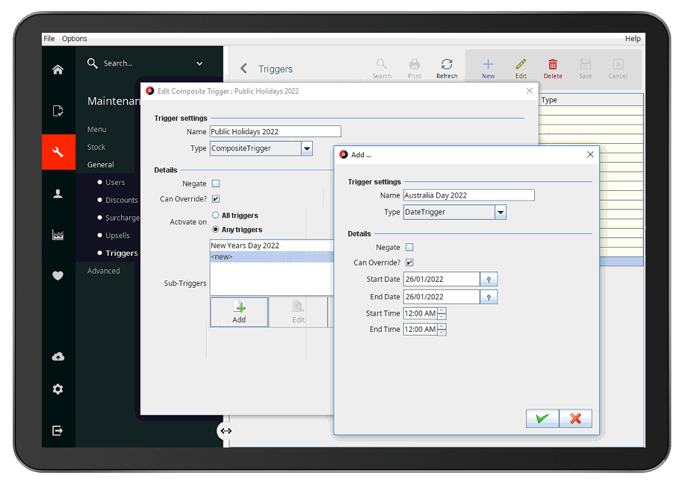
Name the Trigger eg Public Holidays 2022
-
Select the Type - Composite Trigger (a trigger that contains other triggers)
-
Negate will reverse the logic of the trigger, so leave this field blank
-
Select the Can Override field so this trigger can be manually enabled, or disabled from WaiterMate if required
-
Select Any Triggers for the activation strategy so that any of the public holidays will enable this feature
Next add the Sub Triggers
-
Select the Add icon below the Sub-Triggers box
-
Name the Trigger eg Australia Day 2022
-
Select the Type - Date Trigger
-
Select the Can Override field so this trigger can be manually enabled, or disabled from WaiterMate if required
-
Set the Start and End dates for the public holiday
-
Set the Start and End Times if required (leave as 12.00AM - 12.00AM if this should be for the whole day)
-
Select the Green Tick to finalise
-
Repeat this step for all for the public holiday dates required