
Use the WaiterMate Training Module to practise everyday tasks such as opening tables, processing sales, and taking payments in a safe training environment. The training module allows team members to build confidence using WaiterMate while keeping training transactions separate from live business activity. This makes it ideal for onboarding new staff and refreshing skills across your team.
Step 1: Check the WaiterMate Training Module is Active
The WaiterMate training module is a per terminal configuration.
- Open WaiterMate on the terminal that will be used for training
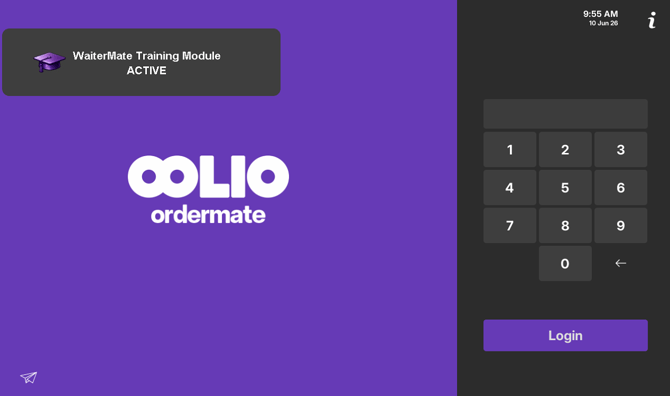
- Confirm the WaiterMate Training Module is ACTIVE message is displayed on the login screen before using the terminal.
- A purple banner displaying the same message appears at the top of every screen after logging in
Step 2: Log in to WaiterMate
Practise normal tasks in WaiterMate;
- Log in to WaiterMate using the team members PIN
- Open any module ie. Table, Phone order or a Quick sale
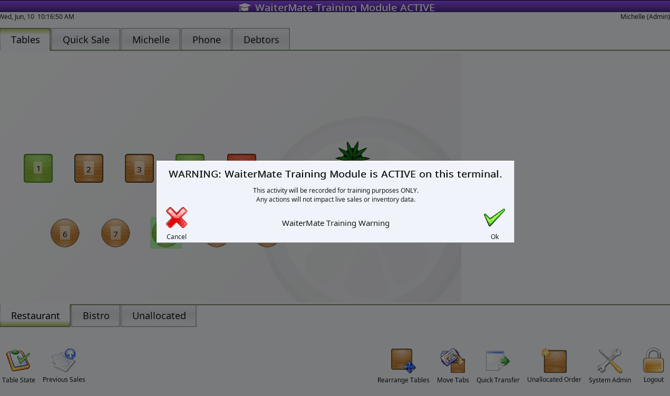
- Each time a user logs in, a WaiterMate Training Module message will appear. This reminder helps staff identify that the training module is active on this terminal and prevents live orders from being entered by mistake during busy service periods.
- Select OK to continue.
Step 3: Process a Training Order
Follow the standard order processing procedure used during normal service.
- Trainees can practise common tasks such as adding products, applying modifiers, assigning seats, and managing courses.
- Use the same process for saving training orders as a normal account.
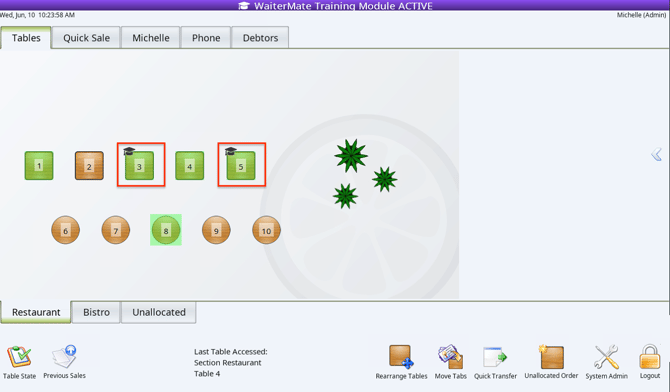
- Once saved, training accounts are marked with a training cap icon, making them easy to identify throughout WaiterMate.
-
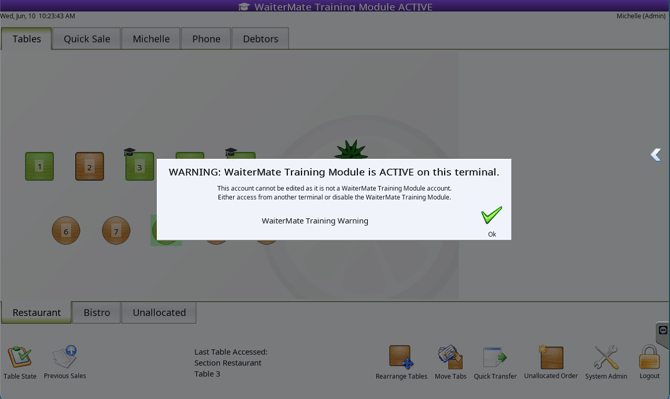
Training accounts are only available on terminals running the WaiterMate Training Module. Attempting to access a training account from a standard terminal will display the following warning.
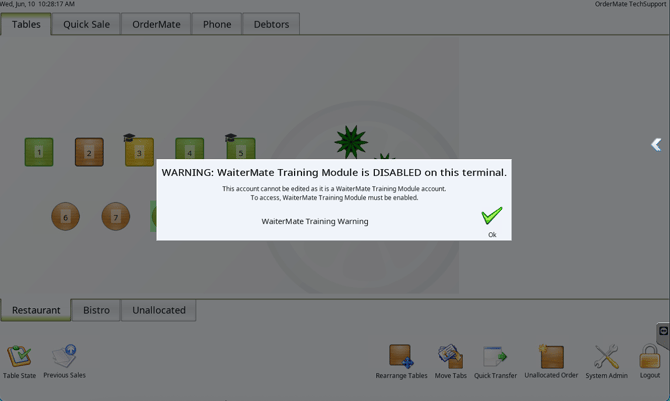
- Live accounts are not available while a terminal that has the training module active, ensuring training activity remains separate from normal trading. Attempting to access a live account will display the following warning.
Step 4: Process a Training Payment
Process payments in the Waitermate Training Module using the same process as during normal service
-
Trainees can practise common payment tasks such as finalising sales, splitting bills, applying discounts, and adding surcharges.
-
Training payments are recorded separately from live payments.
-
All training transactions are assigned to a dedicated training cash drawer, helping keep training activity separate from normal trading.
-
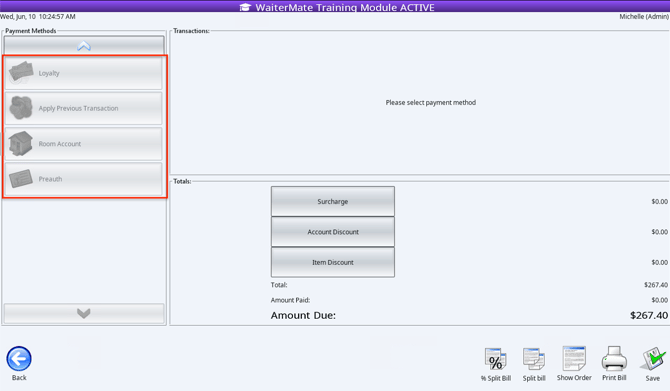
Some payment options are intentionally not available in training mode, including vouchers, customer accounts, and loyalty.
Step 5: Prep Dockets, Tax Invoices and KTS screens
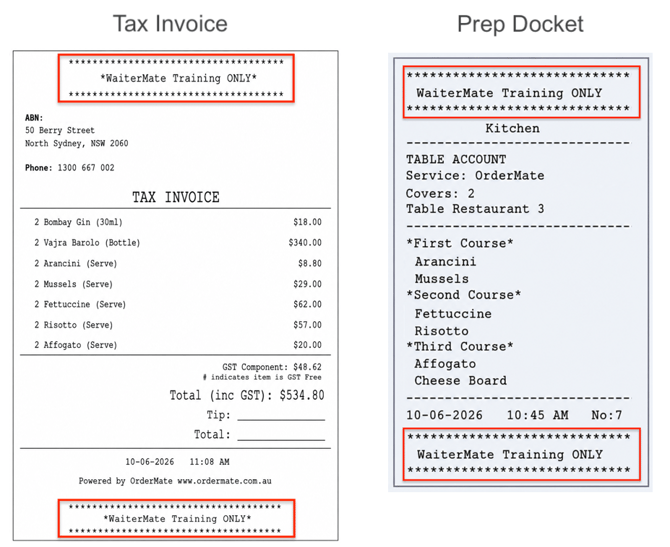
Printing dockets and tax invoices is an important part of training. To help prevent confusion during service, all training transactions are clearly marked throughout WaiterMate.
- Prep dockets and tax invoices print with a WaiterMate Training Module message in the header and footer of the docket
-
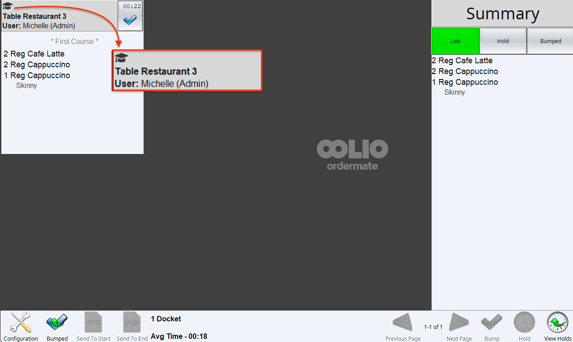
KTS screens display a training cap icon to identify training orders
Important Information
- WaiterMate Training Module is configured per terminal which means that other terminals in the venue can continue function as normal terminals at the same time.
- WaiterMate Training Module orders will not decrement stock or item countdowns.
-
Learn more about the WaiterMate Training Module:
- Configure the WaiterMate Training Module
- Enable the WaiterMate Training Module [Placeholder Link]
- Available from Ordermate Version 5.0.0a