
Permission groups control which functions and areas of the system staff can access in WaiterMate, OfficeMate, and Stock Control.
Every user must be assigned to a permission group before they can log in and use the software. Each permission group contains a set of permissions that determine which features staff can view, access, and manage.
Within the Permission Group screen, permissions can be configured for individual features across WaiterMate, OfficeMate, and Stock Control. Permissions can be enabled, disabled, or hidden for each user group, allowing access levels to be tailored to different roles within the business.
Any changes made to a permission group are automatically applied to all users assigned to that group.
Step 1: Review and Update Permissions
Use the Permissions screen to control which features each user group can access across WaiterMate, OfficeMate, and Stock Control.
Permissions can be enabled, disabled, or hidden for individual user groups, making it easy to manage access for different roles within the business. For example, manager groups may require access to reporting and administration functions, while front-of-house staff may only need access to day-to-day operational features.
- Log in to OfficeMate.
- Select Permissions from the navigation panel.
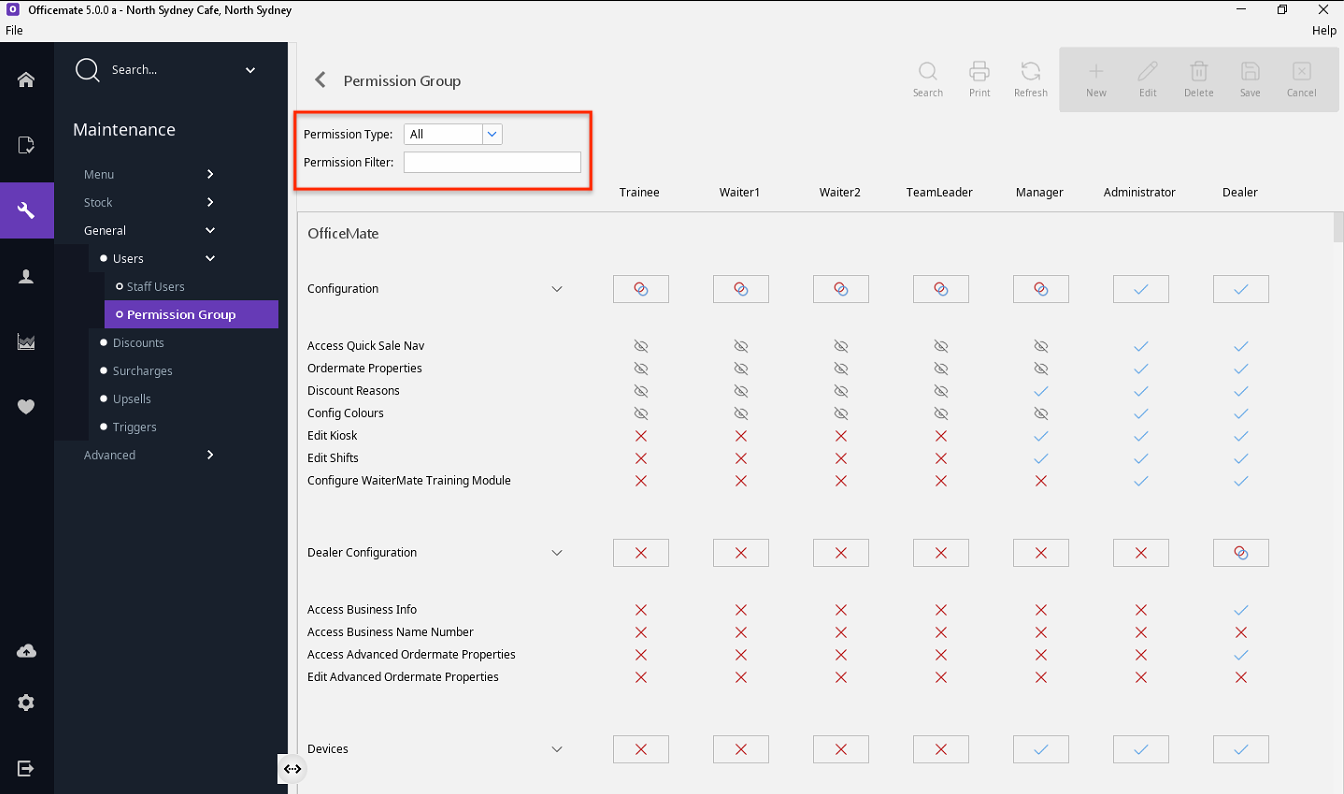
- Select the required Application filter:
- WaiterMate
- OfficeMate
- Stock Control (if enabled)
- Review the available permissions displayed on the screen.
- Locate the permission to be updated.
- Under the required permission group, select:
- Enable to allow access
- Disable to prevent access
- Hide to remove the function from view
- Repeat for any additional permissions that need updating.
Hover over a permission to view a description of its function.
Step 2: Apply Changes to an Entire Permission Category
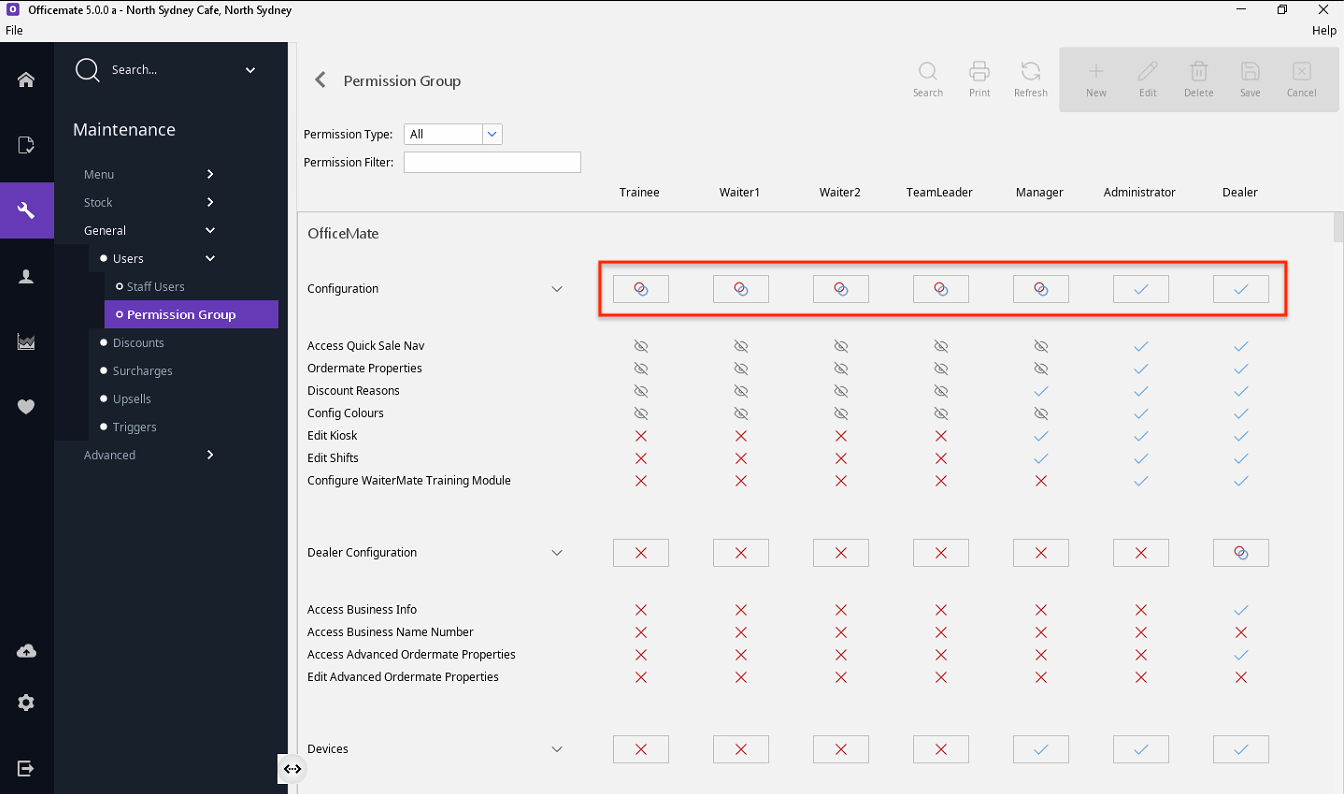
Use the bulk update controls to quickly apply the same permission setting across an entire category.
This can be useful when setting up a new permission group or when a large number of permissions need to be updated at once.
- PermissionLocate the permission category to be updated.
- Select Enable All, Disable All, or Hide All at the top of the category.
- Review the permissions within the category to confirm the required access levels have been applied.
A red and blue circle indicates that the category contains a mix of enabled, disabled, and hidden permissions.
Important Information
- Any changes made to a permission group affect every user assigned to that group.
- Users may need to log out and back in before changes become visible.
- WaiterMate and OfficeMate may need to be restarted for permission changes to take effect.