
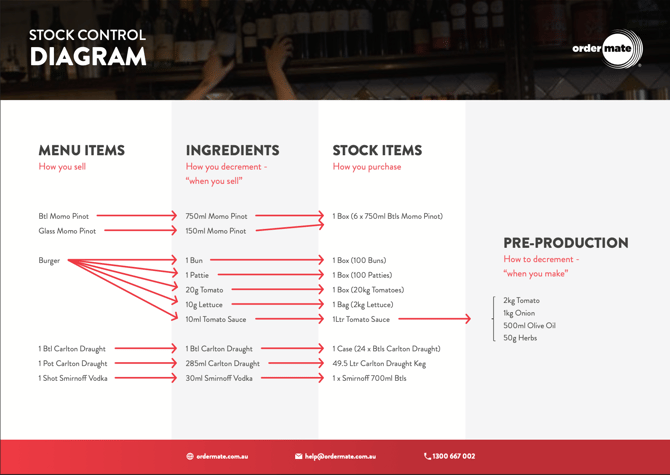
The Ingredients feature in OrderMate OfficeMate allows menu items to be linked to stock items to create recipes and manage stock usage. When a menu item is sold in WaiterMate, the configured quantity of each linked ingredient is automatically deducted from stock, helping maintain accurate stock levels.
Creating a Menu Item
Ingredients (Linking the Menu Item to a Stock Item)
-
Navigate to the ‘Ingredients’ area of OfficeMate

-
The ingredients page will include a list of menu items sorted by menu section. Any new items or unlinked items will be shown in red
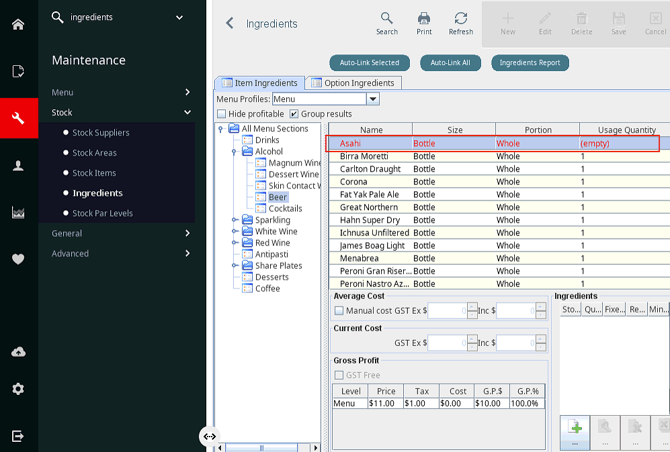
-
To link this to an existing stock item, double click on the item and choose the desired stock item and the quantity to be decremented

Auto-Linking
-
To auto create a new stock item and to link them together, highlight the item you are wanting to create the new Stock Item for and choose the ‘Auto Link’ icon from the top of the screen.
-
Alternatively, you can choose to Auto-Link all items.
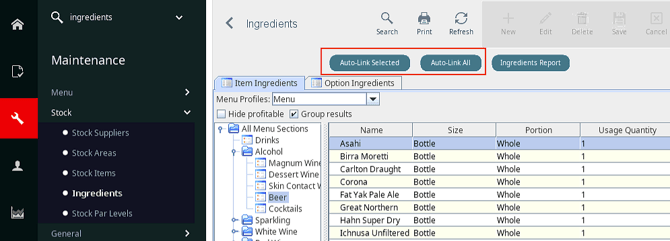
-
The stock item will now need to be edited so that the correct units can be decremented when the menu item is sold. Once the stock item is edited (Creating or Editing a Stock Item) ensure to return to the ingredients tab to set the correct usage in ‘Quantity Used’ field.
Video Tutorial: Watch our Ingredients video tutorials below.