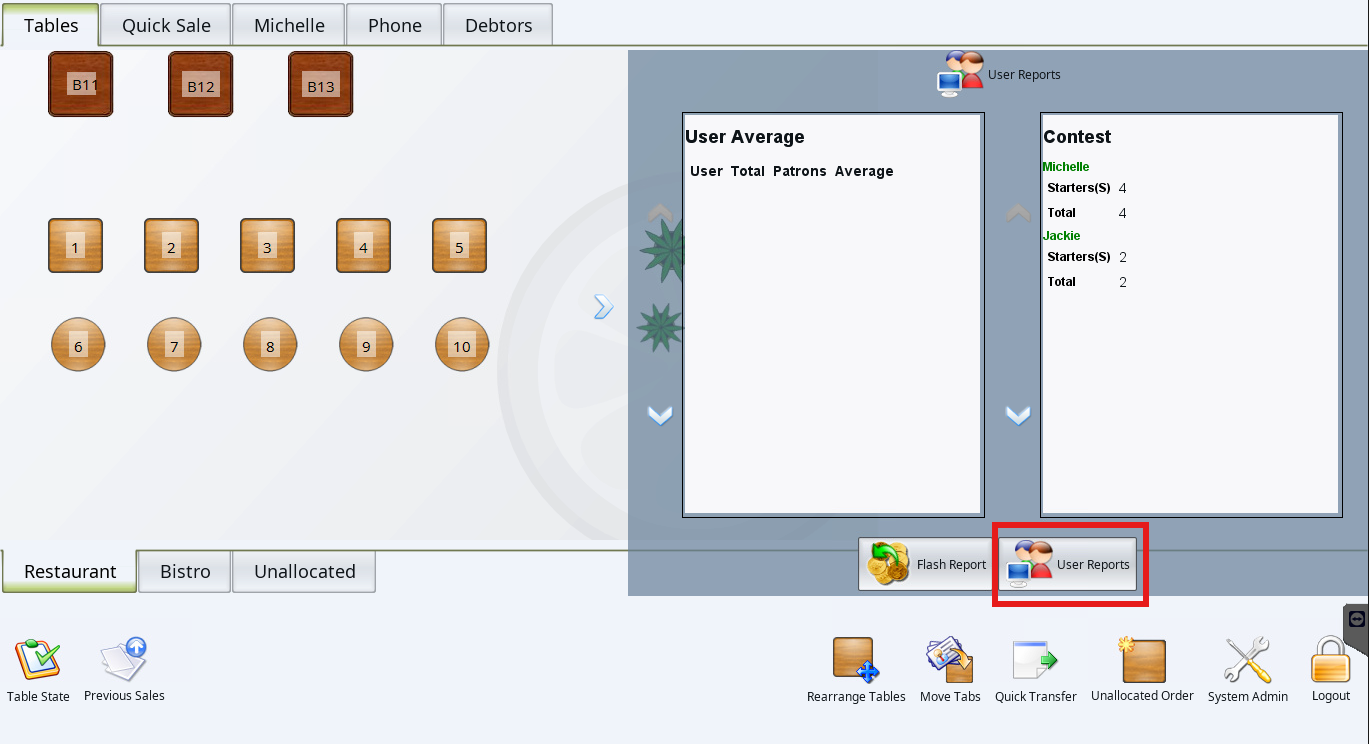
Contests in OrderMate POS allow venues to create sales competitions that encourage staff to focus on selling particular menu items during their shifts.
A contest can track sales of specific items or broader parts of the menu, such as a dessert category, cocktail section, combo, option or plus. Multiple contests can be created and results can be reviewed over different date ranges to compare staff performance.
Contest results can be viewed in OfficeMate, with one contest also able to be selected for staff to view in WaiterMate.
Step 1: Open Contest Setup
Staff Contests are created and managed in OfficeMate.
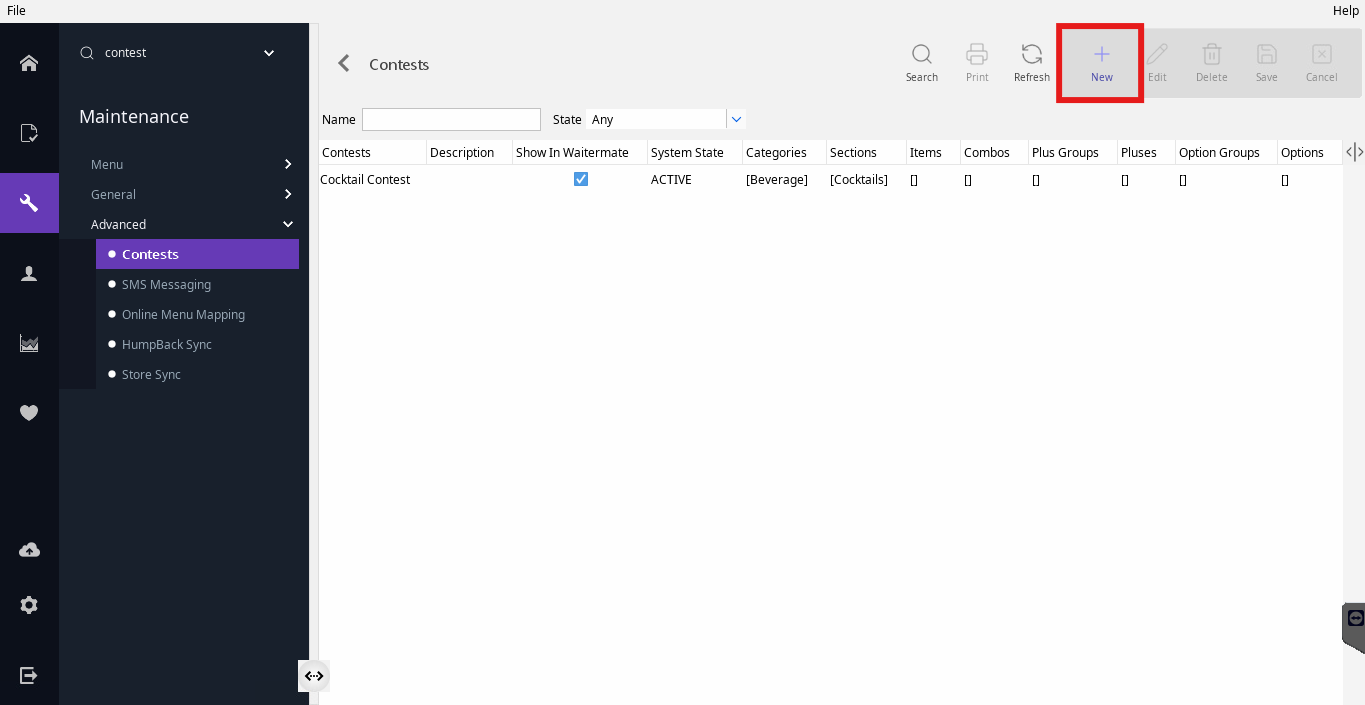
- Open OfficeMate > Maintenance > Advanced > Contests
- Select New to create a new contest.
Step 2: Create the Contest
Enter the details for the sales contest.
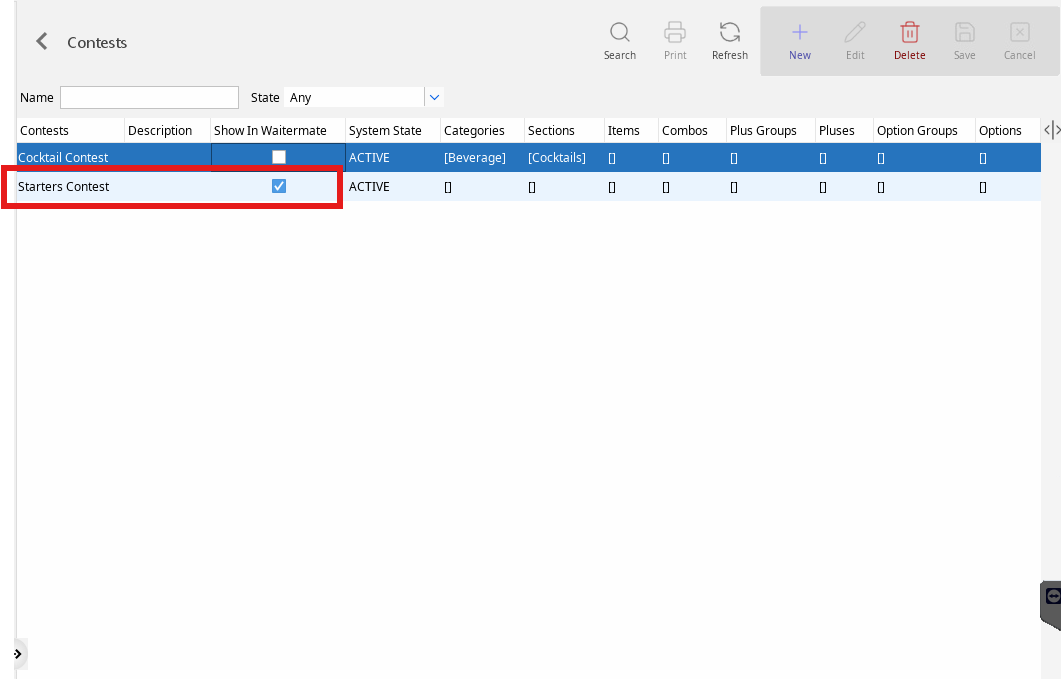
- Enter a Name for the contest.
- Select Show in WaiterMate if the contest should be available for staff to view from WaiterMate.
- Save the contest.
Multiple contests can be created and maintained at the same time.
Only one contest can be selected as Show in WaiterMate at a time. Other active contests can still be reported on through OfficeMate.
Step 3: Choose What the Contest Tracks
Select the menu items or groups that should contribute towards the contest.
A Staff Contest can include one or more of the following:
- Categories
- Sections
- Items
- Combos
- Option Groups
- Options
- Plus Groups
- Pluses
For example, a Cocktail Contest could include an entire cocktail section, while a Dessert Contest could include several individual dessert items.
- Select the relevant contest in Contest Setup.
- Open the required contest entity, such as Items, Categories or Sections.
- Select the entities that should be included.
- Repeat this for any other menu entities required for the contest.
- Save the changes.
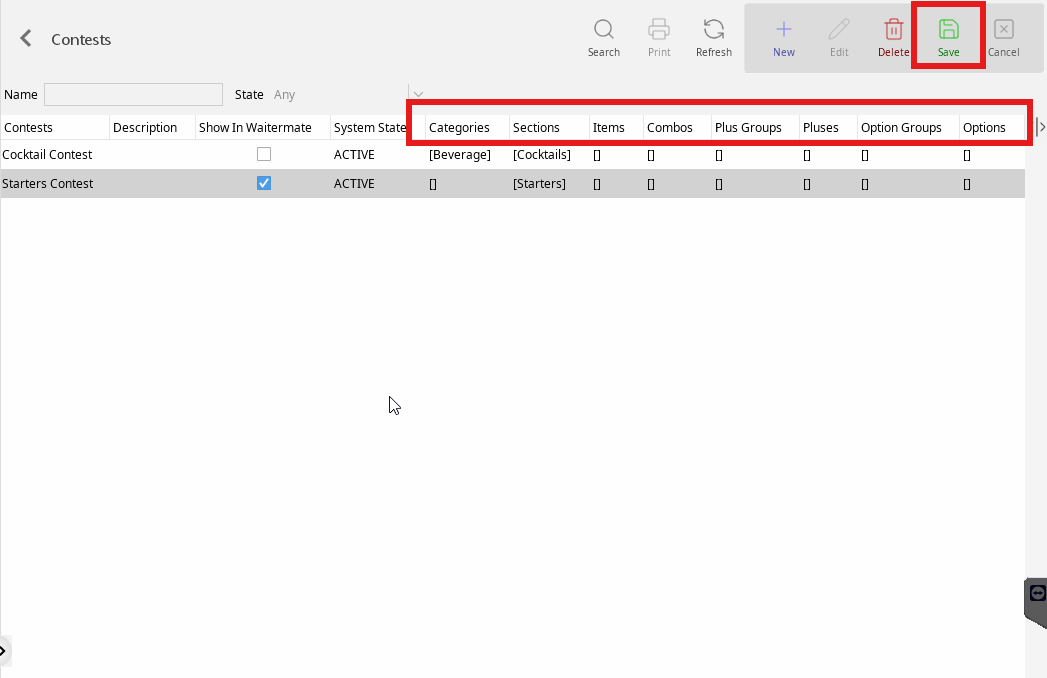
The contest can be edited later to add or remove items or other menu entities as required.
Step 4: View Staff Contest Results in OfficeMate
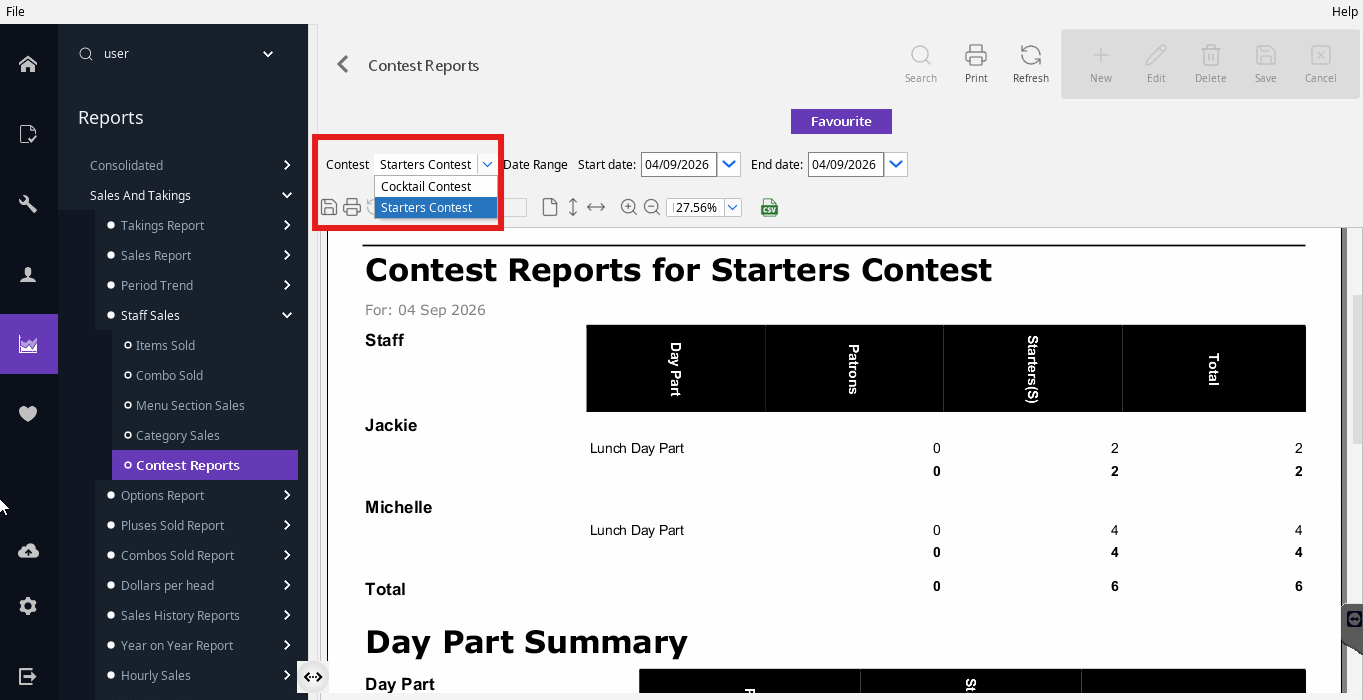
Use the Staff Contests Report in OfficeMate to review how staff are performing.
Open Reports > Sales and Takings > Contests Reports and select the required filters:
- Date Interval – choose the period to report on.
- Contest – select the contest to report on. Only active contests are available.
Run the report to view the number of contest items sold by staff during the selected period.
Step 5: View the Contest in WaiterMate
Staff can view the current Staff Contest results directly from WaiterMate.
- From the Tables screen, select the arrow on the right side of the screen twice to open the Reports tab.
- Select User Reports.
- The Staff Contest Report can be viewed on the right of the screen.
Only one contest can be displayed in WaiterMate at a time. To display a different contest, update the Show in WaiterMate selection in Contest Setup in OfficeMate.